Mastering PC Performance and Workflow with Essential Utility Apps
Computers slow down over time because background processes multiply silently. Every program installed on a modern machine wants a piece of the processor, a slice of the memory, and a permanent home in the system tray. Users often ignore this creep until simple tasks start stuttering. Reclaiming that lost speed does not require buying new hardware immediately. It demands a careful selection of desktop utility applications designed to monitor resources and clear out the digital noise.
Understanding what happens inside the machine starts with proper visibility. Without real-time data, troubleshooting becomes a guessing game of closing random windows and hoping for the best. Good software puts the vital statistics right on the screen without demanding constant attention.
Tracking Hardware Health Under Heavy Loads
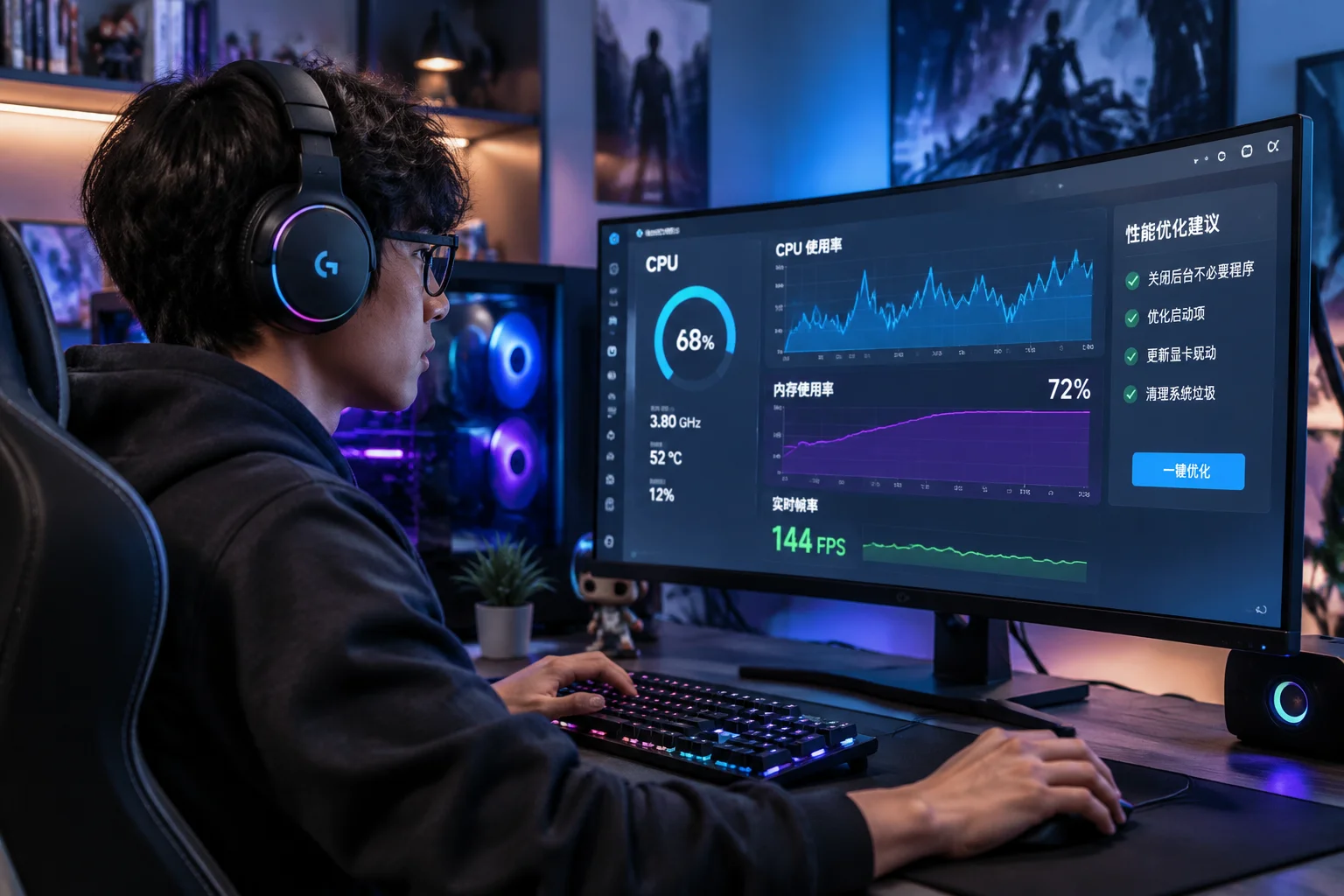
Processors and graphics cards generate immense heat during intense gaming sessions or heavy video rendering. When temperatures climb too high, the hardware protects itself by reducing clock speeds, which instantly causes stuttering and frame drops. Monitoring tools act as an early warning system against this thermal throttling. They display clock speeds, fan rates, and voltage levels in clean, unobtrusive overlay panels.
A reliable monitor does more than just show numbers; it logs data over time to reveal patterns. Users spot recurring temperature spikes during specific rendering tasks or notice memory usage creeping upward during long sessions. Armed with these insights, adjustments to fan curves or thermal paste replacement become obvious steps rather than blind guesses. The hardware lasts longer when it runs within safe thermal boundaries.
Checking memory integrity is another vital part of maintaining a responsive system. Modern applications consume gigabytes of RAM in seconds, and poorly coded software often fails to release that memory when closed. Utility tools highlight these leaks immediately so the offending process can be terminated before it brings the entire operating system to a crawl.
Streamlining Daily Workflow Without Extra Clutter
Performance optimization extends far beyond raw hardware numbers into the realm of daily productivity. Switching between dozens of open windows drains mental energy and fragments attention. Workflow utilities solve this by introducing virtual desktops, quick-launcher overlays, and automated window snapping that organizes the screen in milliseconds.
Cluttered startup directories are another major productivity killer. Too many programs launch alongside the operating system, stretching boot times into frustratingly long waits. Modern utility managers inspect these startup entries, delay non-essential background tasks, and keep the boot sequence lean.
- Disable unnecessary background processes that drain system memory.
- Organize active windows with custom shortcut layouts.
- Monitor real-time CPU temperatures during intense tasks.
- Automate regular file cleanups to free up drive space.
- Track network bandwidth usage by individual applications.
- Manage startup programs for faster system boot times.
These adjustments turn a sluggish workstation into a responsive environment. The key lies in choosing tools that operate quietly in the background without demanding constant configuration or throwing distracting pop-up notifications onto the screen.
Choosing the Right Tools for Your Specific Needs
Every PC setup is unique, and a utility suite that suits a video editor might prove completely unnecessary for a casual gamer. Building an effective toolkit requires matching software capabilities to actual daily bottlenecks. Heavy diagnostic suites offer incredible depth for hardware enthusiasts, but casual users often benefit more from lightweight system trays that show only temperature and RAM usage at a glance.
Avoiding bloated utility packages that promise to fix every computer problem with a single click remains crucial. Those all-in-one programs frequently install unwanted adware and services that consume more resources than they save. Selecting specialized, open-source, or reputable standalone utilities keeps the operating system clean and predictable.
Taking control of desktop performance transforms the computing experience from a source of daily frustration into a smooth, frictionless extension of thought. Install tools that respect system resources, configure them to stay out of the way, and let the hardware perform at its absolute best.